How to set up an emulated Econet network that runs Elite
If you don't have your own personal Econet network but you want to see what the fuss is all about, then there's another option. If you have a PC or a Mac, then you can use the BeebEm, Beebium and MacBeeb emulators to emulate a Level 3 Econet file server and network, all on the same machine. You can then run Elite over Econet and the multiplayer scoreboard in multiple emulator instances, like this:
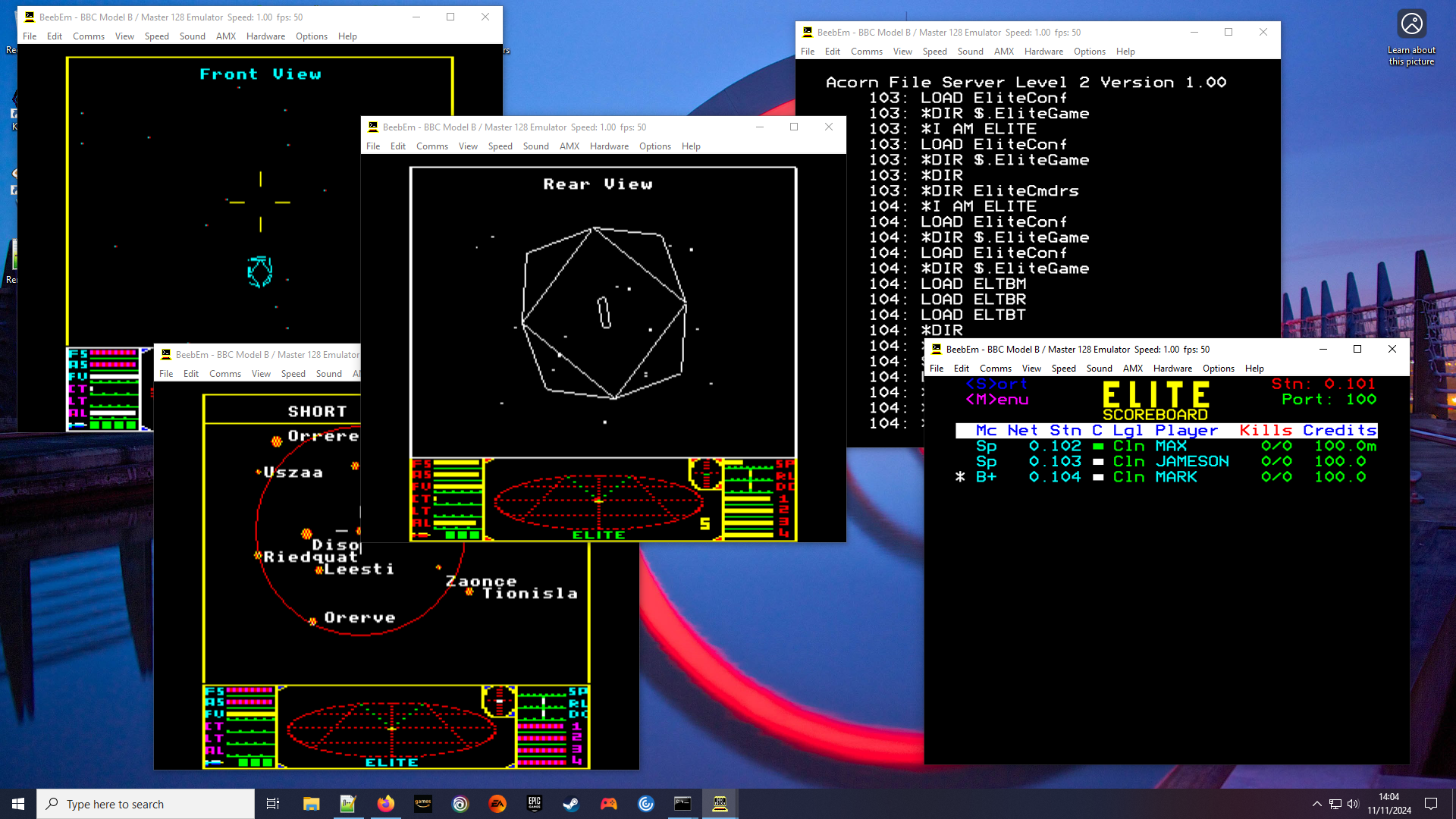
It's also possible to set up multiple instances on different machines on your network and connect them together, though be warned: this is all pretty experimental stuff, so your mileage may vary.
If you use MacBeeb (on the Mac) then the whole process is automated; you just need to create a new Elite over Econet network from the Network Studio, and it will set up a flicker-free Elite server, a scoreboard and three players. You can then ignore the rest of this article.
For Beebium (on the Mac) and BeebEm (on Windows), the network setup process is different depending on which you choose, but once the file server is up and running, configuring Elite is pretty much the same for both emulators. Here are links to the relevant sections in this guide:
- Configure the Level 3 file server in Beebium on a Mac or BeebEm on a PC
- Set up the scoreboard
- Run Elite for each player
- Point each instance of Elite to the scoreboard server
- Notes for BeebEm users
Note that Beebium implements the BBC Micro's BREAK key with Option-F12 (⌥-F12) rather than F12, but the following doesn't explain this every single time, so if you're on Beebium and the instructions say to press F12, you should hold down Option (⌥) as well.
If anyone tries this, I'd love to know how you get on. You can ask me questions or tell me how it went in this Stardot thread.
1a. Configure the file server in Beebium on a Mac
-------------------------------------------------
Beebium has been designed to make Econet easy, so this won't take long.
- Download and install Beebium.
- Download the Beebium presets archive and double-click it to extract the contents. This will create an extracted folder called beebium_presets.
- Run Beebium, choose File > Import Presets... from the application menu, navigate to the beebium_presets folder you just extracted, select all six presets in the folder and click Open.
Beebium is now configured to run Elite over Econet, and you should see a number of Elite-related presets to choose from, like this:
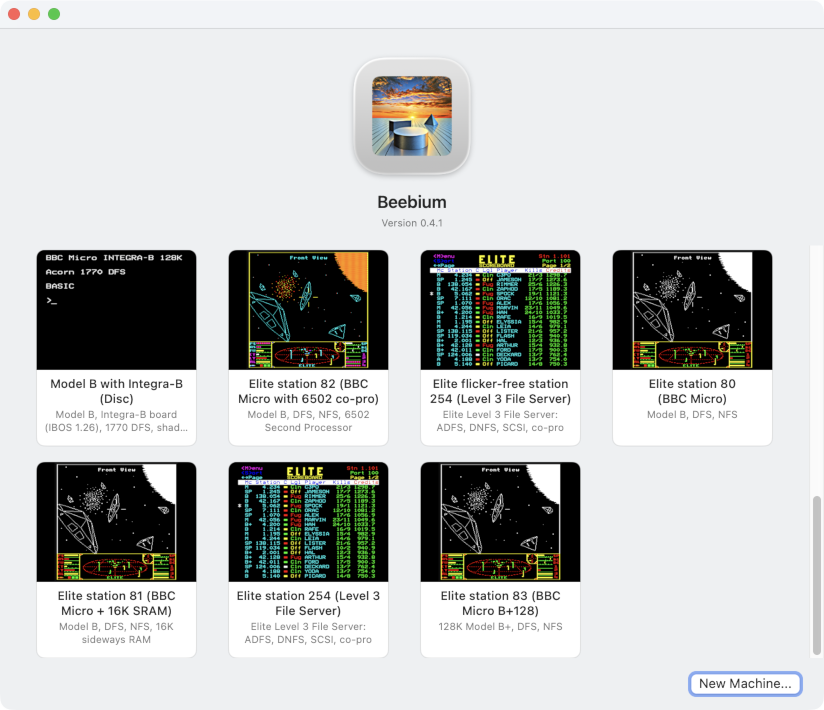
You have a choice of two servers:
- "Elite flicker-free Level 3 file server 254" lets you play the flicker-free version of Elite. This is the recommended option.
- "Elite Level 3 file server 254" lets you play the original, flickery version of Elite.
Choose which one you want to run and click on it to launch the server. It should pop up in a new window and run the Elite Level 3 file server on Econet station 254; after a short wait you should see "Starting - Ready" to indicate that the file server is up and running.
You can now jump to the next step to set up the scoreboard.
1b. Configure the file server in BeebEm on a PC
-----------------------------------------------
For BeebEm, the first step is to install the emulator and configure an emulated Econet network. You can either set up a local cluster of five machines on the same PC, or you can try connecting machines across your entire network. If this is your first attempt, I highly recommend the first option.
- Download and install BeebEm.
- Have a quick read of the instructions for configuring BeebEm to emulate Econet. You don't need to do anything here, as you can just follow the steps below, but it's handy to skim these instructions anyway, just to get an idea of what's involved. We're going to be installing a Level 3 file server.
- For the quick and easy local server setup, you can create up to five BeebEm instances on one machine, in which case the last part of your Econet.cfg file should look like this (i.e. just remove the comments from the default file):
  # Example network configuration.

  # File server (station number 254) and 4 stations on the local PC:
  0 254 127.0.0.1 32768

  # Stations:
  0 101 127.0.0.1 10101
  0 102 127.0.0.1 10102
  0 103 127.0.0.1 10103
  0 104 127.0.0.1 10104
You should also untick Options > Freeze when Inactive in BeebEm, so when you run your five BeebEm instances, they can all run concurrently. - If you want to try something more complicated (but also more unreliable), then you can set up BeebEm on different physical PCs on the same local network. I recommend you first try the simpler setup above, but if you want to move to the next level, then the last part of Econet.cfg should list all your different PCs, mapping their IPs to Econet station numbers, like this example:
  # File server (station number 254):
  0 254 192.168.0.80 32768

  # Stations:
  0 101 192.168.0.64 10101
  0 102 192.168.0.87 10102
  0 103 192.168.0.156 10103
In this example, the machine with IP 192.168.0.80 is the file server, while 64, 87 and 156 are user machines. Local IP address formats can vary from network to network, so you need to check what they actually are.
For multiple PCs over the network, you should set Econet.cfg to be exactly the same on every instance of BeebEm that you want to connect over the network.
I have also tried multiple machines from one machine on the latter, and it works. So adding this line to the above, for example:0 250 192.168.0.80 10250
will enable two separate BeebEm instances to run on the server machine, one as station 254 (the server) and the other as station 250 (which could be a scoreboard, for example). Don't forget to untick Options > Freeze when Inactive in BeebEm, so they can all run concurrently.
The above worked for me, but having said that, my test network wasn't terribly stable when actually loading Elite (it was fine when Elite had loaded and the scores were the only traffic, though). Econet in BeebEm is experimental, so your mileage may vary. See the BeebEm instructions for some things you can try to fix this, or see the notes in section 6 below.
Once Econet is configured, the next step is to run the Level 3 Econet file server containing Elite over Econet. Here are the steps:
- Download the BeebEm DiscIms archive.
- Choose whether you want to play the flicker-free or the original version of Elite, and copy the scsi0.dat and scsi0.dsc files from the relevant folder inside the archive, putting them into the DiscIms folder in BeebEm's configuration (which you can find in the same place as the Econet.cfg file). You might want to backup the existing files first.
- Start an instance of BeebEm to act as the file server (you can either double-click BeebEm or run it from the command line to start a new machine).
- Configure it via the Hardware menu as a BBC Master 128 with a 65C02 second processor, with Econet On and SCSI Hard Drive On.
- Press Shift-A-F12 to reset the machine and boot the fileseever.
- After a short wait you should see "Starting - Ready" to indicate that the file server is up and running.
You can now move on to the next step to set up the scoreboard.
2. Set up the scoreboard
------------------------
The second step is to start up the Elite scoreboard on one of the emulated machines.
- Start a new machine to act as the scoreboard.
- For Beebium, run one of the Elite stations; it doesn't matter which, they all run the scoreboard equally well.
- For BeebEm, either double-click on BeebEm or run it from the command line to start a new machine. Any machine type will do, but I tend to configure it as a plain BBC Model B; just make sure Econet is On. Press Ctrl-N-F12 to reset the machine and switch to Econet (it should show the station number at the top).
- Type *I AM 0.254 ELITE and press Return. This logs us on to the file server.
- Type *ELITE S and press Return. This runs the scoreboard.
- When the scoreboard has loaded, enter a port number for this scoreboard (e.g. 100) followed by Return.
- Make a note of the network and station number shown in the top-right corner (the red "Stn") and the port number (the green "Port").
3. Run Elite for each player
----------------------------
The third step is to start running Elite itself.
- For each player, start a new machine to run Elite.
- For Beebium, run one of the Elite stations, according to the version you want to play. Note that if you have already run one of these station numbers and want to set up a second machine of the same type on the network, then you need to change the station number to a different, unused number to prevent a clash; you can do this via the Network tab in the left pane.
- For BeebEm, either double-click on BeebEm or run it from the command line to start a new machine. Configure it via the Hardware menu to the machine type for the version you'd like to play (i.e. BBC Model B, BBC Model B with 6502 Second Processor or BBC Master 128) and make sure Econet is enabled. If you choose to set up a BBC Master, you need to enable ANFS by typing *INSERT 8 and pressing Return. Press Ctrl-N-F12 to reset the machine and switch to Econet (it should show the station number at the top).
- Type *I AM 0.254 ELITE and press Return. This logs us on to the file server.
- Type *ELITE and press Return. This runs Elite over Econet.
- If you are running the BBC Micro version, follow the instructions to free up enough memory.
- If you are having trouble running Elite on BeebEm, try repeating the last three steps, as sometimes the emulated network jams.
- You can load/save commander files from the file server; all players share the same user directory, so be careful not to overwrite other player's files (unless you intend to).
- There is a maxed-out commander called MAX to give you a head-start.
4. Point each instance of Elite to the scoreboard server
--------------------------------------------------------
The fourth step is to set up network communication from Elite to the scoreboard.
- In each instance of Elite, start by saving your commander under a unique name that you want to use in the multiplayer game (you can either do this by pressing "Y" on the title screen, or pressing "@" in-game). If you don't do this then you will have lots of players called JAMESON or MAX, which isn't ideal.
- Exit the save/load menu into the main game.
- While docked, pause the game using End in BeebEm or Option-F11 (⌥-F11) in Beebium, and tap "N" to enter the network menu.
- Enter the network, station and port numbers from when you set up the scoreboard above, and optionally reset the score (if it isn't already zero); if your scoreboard is on 0.101, say, then the network number is 0 and the station number is 101.
- Press "Y" or "N" depending on whether you want to reset the scores (if they are zero then it doesn't matter what you pick); you probably want to do this before starting a new multiplayer game.
- Once you see OK, tap any key to go back to the game.
- If you make a mistake, just pause the game and press "N" again to have another go.
- If all is well, then after a short pause you should see your commander name and score appear in the scoreboard.
- Repeat this process for all players on the network.
5. Notes for BeebEm users
-------------------------
Here are some notes for BeebEm.
- I've had some intermittent issues with line jam errors when running BeebEm locally, despite trying the fix in the documentation. For reference, I've tried running BeebEm like this on my PC:
C:\Users\Mark\Documents\Files\Emulators\BeebEm\BeebEm.exe -EcoFF 50000
but it doesn't seem to make any difference compared to double-clicking BeebEm to run an instance. Your mileage may vary, of course. - As the default BBC Model B configuration in BeebEm has sideways RAM enabled, players will show up with a machine type of "B+" in the scoreboard. You can disable sideways RAM via the Hardware menu (Edit ROM configuration) to get the authentic Model B experience.
That's it. You can ask me questions or tell me how it went in this Stardot thread. If anyone manages to get this working, do let me know...