Full instructions for two-player Elite on the BBC Micro
This page contains full instructions for two-player Elite. Click on any of the following to jump down to the relevant section:
- Starting the game
- Controls
- AI Pilot
- Using Delta 14B joysticks
- Space views and dashboards
- Pause options
See playing two-player Elite to find out how to play the game in your browser or download a disc image to run on a real machine.
Starting the game
-----------------
Two-player Elite lets two players fight each other in deep space. Once the game has loaded, you can choose the details from the main screen, which looks like this:
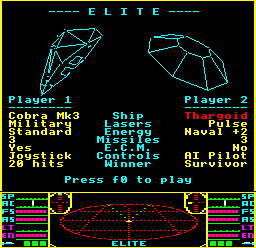
You can move the red cursor with the arrow keys, and you can toggle the highlighted option by pressing any key except "R" or f0. When you are happy with the setup, press f0 to play (or press F10 if you are playing in a browser or an emulator). The game will start with the two players back-to-back, just like an old-fashioned gunfight. How you proceed from there is up to you...
If this is your first game then the default configuration is a pretty good place to start: it pitches one human player (player 1, on keyboard) against the computer (player 2, the AI Pilot). See the sections on controls and the AI Pilot for more details about these two options.
If you want to add a bit of variety to your competitions, you can press "R" to randomise the ship loadouts. You can keep pressing "R" until you are happy, or you can jump in and tweak the results manually. Pressing "R" won't change the controls or the winner, it just randomises the ship loadouts, so it's good for mixing things up.
Here are some notes on configuring your game:
- Ship: In terms of gameplay, the choice of ship only affects the targetable area. Larger ships are easier to hit, but handling and shields are the same with all ship types. See the table below for details of each ship's targetable area.
- Lasers: Human players always have two lasers of the same type, fitted to the front and rear views. The AI Pilot only has one laser that's fitted to the front view, just like the enemies from the original game.
- Energy: Better energy units replenish energy at faster rates. Collisions between players will damage both ships, but the faster ship gets a much higher penalty.
- Missiles: Each player can have a maximum of one missile in-flight at any one time; you will get a "missile jammed" message if you try to launch a second missile before your first one has exploded. Note that you must wait for the explosion cloud to dissipate before you can launch another missile.
- Winner: You can change the game rules by changing the type of winner. In all fights, you can win by reducing your opponent's energy levels to zero, just like in the original game. In hit-based games, you can also win by reaching your target hit count before your opponent. Each laser strike on your opponent counts as one hit, as does each missile strike (though the latter will seriously reduce your opponent's shields and energy levels as well). Beam and military lasers rack up hits in a continuous manner, while pulse and mining lasers are much slower; in particular, mining lasers have a really long pulse length, so it's hard to get in a lots of shots, though those that do hit the mark have quite an impact on shields.
Here's a summary of all the options available from the main game screen:
| Category | Options |
|---|---|
| Ship (targetable area) |
|
| Lasers (power, type) |
|
| Energy unit |
|
| Missiles |
|
| E.C.M. |
|
| Controls for player 1 |
|
| Controls for player 2 |
|
| Winner |
|
Controls
--------
Controls for the two players can be configured as follows:
- Player 1 can be configured to use the keyboard, joystick or Delta 14B.
- Player 2 can be configured to be an AI Pilot, or to use a joystick or Delta 14B.
See the sections on the AI Pilot and Delta 14B joystick for more information about these choices; keep reading for information on the keyboard and joystick options.
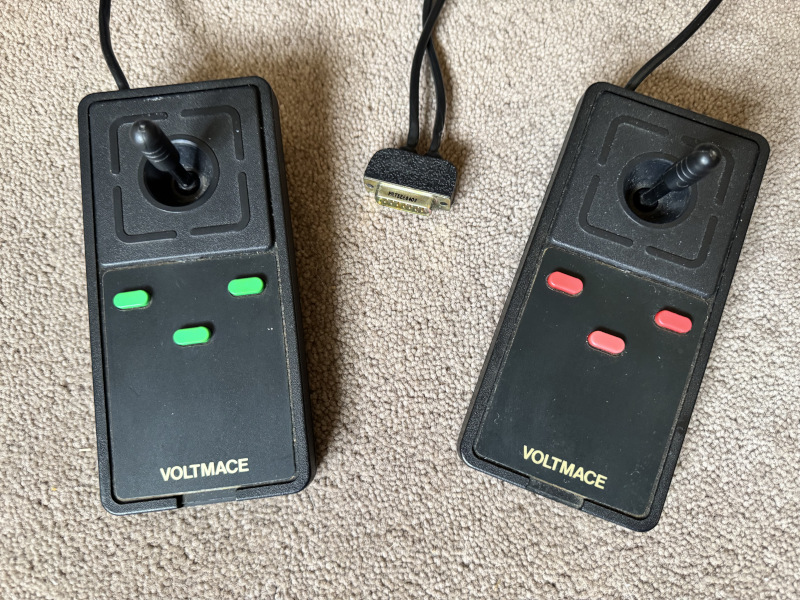
If there are two of you wanting to play Elite and you don't have a fancy Delta 14B setup, then you will need to have at least one joystick and you will need to share the keyboard to some extent; twin joysticks, like the Delta 3B sticks shown above, are even better. I've tried to lay out the two sets of keys to prevent clashes, but your mileage may vary.
Here's the full set of controls for all of the different keyboard and joystick configurations. Note that the rightmost column refers to keys on the BBC Master's numeric keypad:
| Action | Player 1 Keyboard | Player 1 Joystick | Player 2 BBC Micro | Player 2 BBC Master |
|---|---|---|---|---|
| Climb (pull back) | X | Joystick | Joystick | Joystick |
| Dive (pitch forward) | S | Joystick | Joystick | Joystick |
| Anticlockwise roll | < | Joystick | Joystick | Joystick |
| Clockwise roll | > | Joystick | Joystick | Joystick |
| Fire lasers | A | Joystick | Joystick | Joystick |
| Increase speed | Space | Space | RETURN | RETURN |
| Decrease speed | / | / | ] | . |
| Front view | f0 | f0 | Up arrow | 8 |
| Rear view | f1 | f1 | Down arrow | 2 or 5 |
| Left view | f2 | f2 | Left arrow | 4 |
| Right view | f3 | f3 | Right arrow | 6 |
| Target missile | T | T | [ | + |
| Fire missile | M | M | @ | * |
| Unarm missile | U | U | _ (underscore) | - (minus) |
| E.C.M. | E | E | \ | DELETE |
Here are some notes you might find useful when trying to control your ship:
- Player 1's keys match those in the original game, but player 2 has a new set of keys to learn. For more details on the original game's controls, you can read the original game manual on Ian Bell's website.
- Player 1's keys are towards the left side of the keyboard, and player 2's keys are towards the right. If you're lucky enough to be playing on a BBC Master then player 2 can choose to use the numeric keypad instead of the main keyboard, which makes life quite a bit easier (see below for more about using the keypad).
- For players using joysticks, the primary flight controls (pitch, roll and fire) are on the stick, and the secondary flight controls are on the keyboard. For players using the keyboard, all of the controls are on the keyboard.
- For player 2 on a BBC Micro, the missile keys have been placed in a row so the fire button ("@") is furthest away from the player sitting on the right side of the computer, so that it's far away from the other keys. This is to help prevent accidental firing of a targeted missile.
- For player 2 on a BBC Master, you can either use the normal set of BBC Micro keys, or you can use the numeric keypad. The keypad controls are reasonably logical: there's "+" and "-" to switch the missile's targeting system on and off, and when you have target lock, you can press the explosion-like "*" key to fire the missile. You can also activate your E.C.M. to DELETE any enemy missiles. The view keys are also logical, and both diamond and WASD-style layouts are supported. Of course, the arrow keys also work, which some people might prefer.
There's a further set of key presses for when the game is paused; see the section on pause options for details.
AI Pilot
--------
When two-player Elite first loads, the default configuration is for one human (player 1) to fight against an AI Pilot (player 2). The ships are set up to produce an evenly matched fight between two Cobra Mk IIIs, with player 1 on keyboard and player 2 on auto-pilot. In essence, this configuration is similar to dogfights in the original Elite, except the game shows the view from the enemy ship as well as the human player.
For the AI Pilot, the computer controls the player using the exact same tactics code as in the original game... though these days "AI" is a rather more loaded term than it was in 1984, so this probably makes the AI Pilot sound a lot more sophisticated than it is. In two-player Elite this lack of sophistication is easy to see, particularly in the game's fixed-angle approach to pitching and rolling; the AI Pilot's view clearly moves around in big jumps, rather than the smooth movements you see for human players. You can read all about the tactics engine in the deep dive on program flow of the tactics routine, and the fixed-angle rotation is covered in the deep dive on pitching and rolling by a fixed angle.
As a way of levelling the playing field in two-player Elite, both player and AI ships have the same shields and energy levels as the human player in the original game. This means it take a lot more effort to kill the AI Pilot in two-player Elite than a typical enemy in the original game, as the enemies in the original game have really weak shields and energy levels in comparison.
Incidentally, the keys for changing player 2's view work still when player 2 is configured as an AI Pilot. Changing player 2's views won't affect the gameplay in any way, but it does let you see exactly what the AI can see from all four directions.
Note that unlike the human players, the AI Pilot doesn't have a rear laser fitted, just like the enemies in the original game.
Using Delta 14B joysticks
-------------------------
If you have a Delta 14B/1 adaptor box and a Delta 14B joystick, then you can play the game without needing the keyboard... and if you have a Delta 14B/1 adaptor box and two Delta 14B joysticks, then both of you can play the entire game using only your sticks.
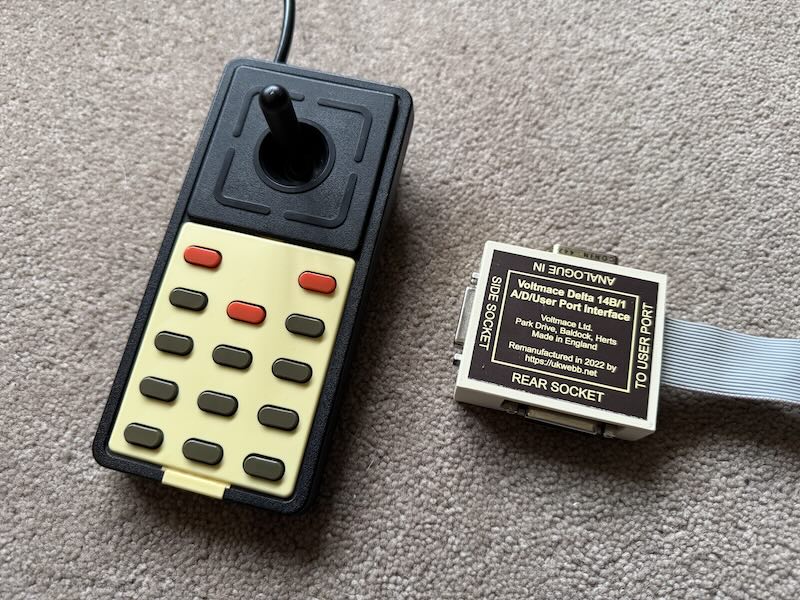
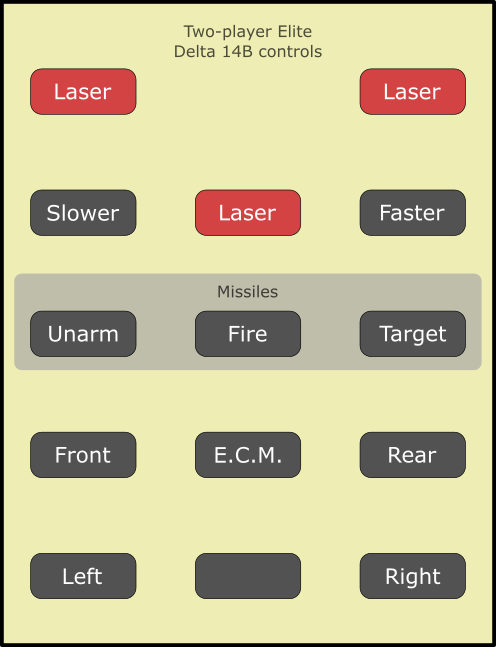
Two-player Elite lets you use the buttons on the Delta 14B for all of the game's flight controls, so you don't have to reach for the keyboard at any point while fighting. You use the joystick for flying and you use the buttons as follows:
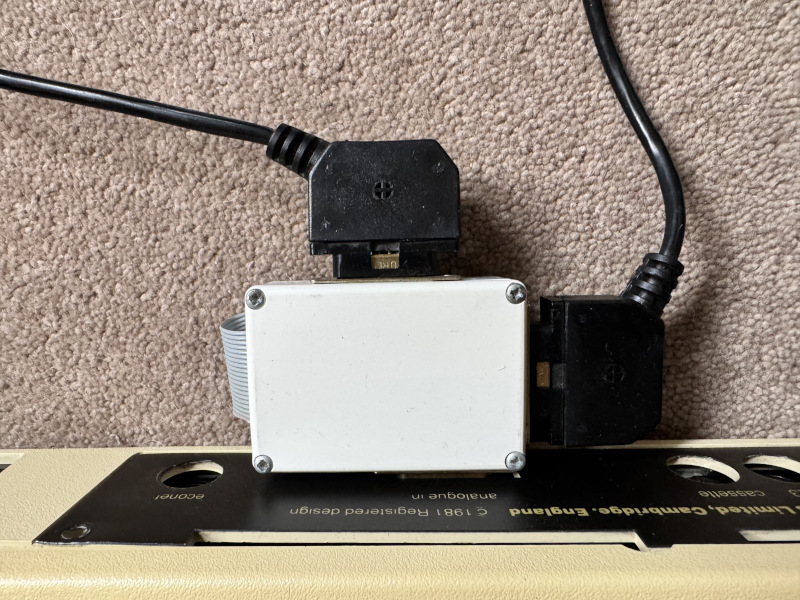
To get all this working, you will need one or two Delta 14B joysticks and a Delta 14B/1 adaptor box, as well as a real BBC Micro or BBC Master, as no emulators currently support the Delta 14B system. If you don't already have these, then the joysticks pop up on eBay reasonably regularly, but the adaptor box can be really hard to find. Luckily you can buy modern reproductions of the 14B/1 from Stardot legend ukwebb; see this Stardot thread for details. I have one of his adaptor boxes (it's in the picture above), and I can highly recommend it.
To set up your Delta 14B joystick(s) for two-player Elite, first make sure your computer is switched off, and then connect the 14B/1 adaptor box to the analogue port and plug the ribbon cable into the user port. Next, attach your Delta 14B joysticks as follows:
- If you have one Delta 14B joystick, plug it into the rear socket of the 14B/1 adaptor box, and when you run the game, set the controls to "Delta 14B" for one player.
- If you have two Delta 14B joysticks, plug one into each socket of the 14B/1 adaptor box, and when you run the game, set the controls to "Delta 14B" for both players.
- If you only choose "Delta 14B" for one player then the game will use the joystick in the rear socket, even if you have two sticks attached.
For reference, here's what the 14B/1 adaptor looks like when attached to BBC Micro B+ and two Delta 14B joysticks - this one is a genuine Voltmace original from the 1980s rather than the remake in the photo above:
Once everything is attached, you should be able to play two-player Elite without needing to use the keyboard.
You can download a PDF of these instructions for easy reference, or here's the button layout in text form:
  Fire laser                                    Fire laser
  Slow down              Fire laser             Speed up
  Unarm missile          Fire missile           Target missile
  Front view             E.C.M.                 Rear view
  Left view                                     Right view
Note that the buttons on the Delta 14B will only work if you have a 14B/1 fitted. You can use your Delta 14B as a normal joystick without the 14B/1 fitted, in which case choose the joystick option; the three red fire buttons will work, but the other buttons won't.
Space views and dashboards
--------------------------
This is what the game looks like during a dogfight:
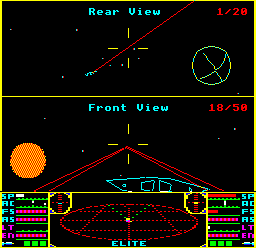
Player 1 plays in the top space view, using the left set of dashboard dials. Player 1 should look for cyan blobs in the compass and scanner (see below).
Player 2 plays in the bottom space view, using the right set of dashboard dials. Player 2 should look for yellow blobs in the compass and scanner (see below).
The shared scanner can take a bit of getting used to, but most people get the hang of it relatively quickly. One tester found it useful to practise playing as player 1 against the AI Pilot in player 2, while covering up the player 2 space view with Post-It notes until they got used to the split-screen setup.
The dashboard dials should be familiar to anyone who has played the original, though they have been tweaked to support two players at once. Here's a close-up of the dashboard in two-player Elite:
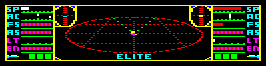
Each player has their own set of dials, with player 1 on the left and player 2 on the right. These dials are very similar to those in the original game, and they show the following (from top to bottom):
| Label | Meaning |
|---|---|
| SP | Speed |
| AC | Attitude control Combines the roll (RL) and pitch (DC) dials from the original game |
| FS | Fore shield |
| AS | Aft shield |
| LT | Laser temperature |
| EN | Energy level Combines the four bars of the original game into just one bar |
| Missiles | The status of up to four missiles:
|
Each player also has their own compass, with player 1's compass on the left and player 2's compass on the right. Each compass always points at the other player, so you can track down your enemy should they go off-scanner. A thick dot means the other player is in front of you, while a thin line means the other player is behind you.
In the above example both players are facing in the same direction, with player 1 being chased by player 2, so player 1's compass on the left shows a thin line to indicate that player 2 is behind them, while player 2's compass on the right shows a thick dot to indicate that player 1 is in front.
The 3D scanner is shared between both players. This is how it works:
- Player 1 should look for cyan sticks on the scanner, as these show player 2's ship and any missiles in the vicinity. Just ignore anything in yellow.
- Player 2 should look for yellow sticks on the scanner, as these show player 1's ship and any missiles in the vicinity. Just ignore anything in cyan.
If you forget which colour you should be looking for, just glance at your compass, as this uses the same colour as the ships that you should be looking for on the scanner.
Ships are shown with two-pixel dots on the ends of the sticks, while missiles are shown with a one-pixel line on the ends of the sticks.
Here's an example showing both player's ships, with a single missile flying between them:
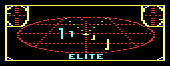
This is how each player should view the scanner:
- Player 1 should look for cyan sticks on the scanner, like the ones on the left. The player is at the centre of the scanner so both the enemy ship and the missile are to the left of the player and slightly above and behind, with the missile (one-pixel line on the end of the stick) closer than the ship (two-pixel dot on the end of the stick).
- Player 2 should look for yellow sticks on the scanner, like the ones on the right. The player is at the centre of the scanner so both the enemy ship and the missile are to the right of the player and quite a bit below and behind, with the missile (one-pixel line on the end of the stick) closer than the ship (two-pixel dot on the end of the stick).
As in the original game, you can't tell from the scanner whether a missile is friendly or hostile. However, in-flight messages work as normal, so the player being chased by the missile will see an "INCOMING MISSILE" message flash up in their space view, like this:
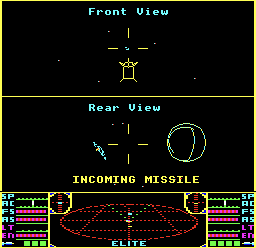
In this example, player 1 has just fired a missile at player 2, so player 2's space view shows "INCOMING MISSILE". It's time to run!
Pause options
------------
You can press COPY to pause the game and DELETE to resume.
While paused, the following option keys from the original game are supported:
| Key | Option |
|---|---|
| S | Sound on |
| Q | Sound off |
| CAPS LOCK | Toggle keyboard damping |
| A | Toggle keyboard auto-recentre |
| F | Toggle flashing console bars |
| Y | Reverse joystick Y-channel |
| J | Reverse both joystick channels |
| ESCAPE | Quit game and go back to the main screen |
When two joysticks or Delta 14Bs are being used, the last two settings will apply to both sticks.
Those are the instructions for two-player Elite, but it's worth remembering that this is classic Elite, just with two players. For flight tutorials and lots more information about combat, you may find it useful to consult the original game manual on Ian Bell's website. Good luck!